Privacy Info

Showing posts with label Sitecore Powershell. Show all posts

Friday, December 2, 2022

Sitecore PowerShell Script - Remove item from Workflow

We came across scenario where we need to remove multiple items from workflow. If items would be less then there would not be any issue but items to be removed were large in number. After some research we decided to create PowerShell to solve this problem. We came up with below script which we ran across folders recursively and remove the items from workflow. To remove items from workflow we need to make Workflow and Workflow State field as blank.

Script

$folderPath = "master:\sitecore\content\Home\TestFolder"

$items = Get-ChildItem -Path $folderPath -Recurse 

foreach($item in $items)
{
	$item.Editing.BeginEdit()
	$item.Fields["__Workflow"].Value = ""
	$item.Fields["__Workflow state"].Value = ""
	$item.Editing.EndEdit() | Out-Null
	Write-Host "Item $($item.name) removed from Workflow"	
}	

Hope you find this blog helpful 😀


Article Referred 

https://www.logicalfeed.com/posts/1194/sitecore-powershell-script-to-remove-update-workflows

Monday, October 17, 2022

Sitecore PowerShell - Merge Layouts


Below script will help you to merge content from layouts. PowerShell script will merge layout from Final to Shared. In the script we need to specify template id for which layouts needs to be merged.

Script

$query = "fast:/sitecore/content//*[@@templateid='{CC44DB9D-1111-4E8E-9D84-080CD8895C77}']"
Get-Item -Path "master:" -Query $query | Merge-Layout


You can customize the script as per your requirement and use it. 

Hope this information is useful to you.

Saturday, October 15, 2022

Sitecore PowerShell Script - Item Creation from API


This post describes how can you convert API response from URL to Sitecore item. We need to specify folder item path, Template ID and API URL. After running the script items will be created with API details. Also create template with id, userid, title and completed field and specify template ID for this new template in $templateID variable.  

Script

$itemPath="master:\content\home\DemoTestFolder"
$templateID="{46F57F90-B447-4E8A-8CA1-69B1AD08ACD2}" 
$ApiUrl = "https://jsonplaceholder.typicode.com/todos" 

$response = Invoke-RestMethod -Uri $ApiUrl -Method Get -ContentType "application/json";

foreach ($row in $response)
{
    if (-not ([string]::IsNullOrEmpty($row.id)))
    {
	    $itemName = $row.id

	    #Create Item
	    $newItem = New-Item -Path $itemPath -Name $itemName -ItemType $templateID;

	    #Add values in fields
            $newItem.Editing.BeginEdit()
	    $newItem["id"] = $row.id
	    $newItem["userId"] = $row.userId
	    $newItem["title"] = $row.title
	    $newItem["completed"] = $row.completed
	    $newItem.Editing.EndEdit()

    	Write-Host "Item Created: " $itemName 
    }
}

API URL Reference: https://jsonplaceholder.typicode.com


Hope you find this information useful.

Sitecore PowerShell Script - Creating Multiple Language Versions


We have received request for creating multiple language versions for multiple items. Manually creating language version for each item is cumbersome task. Also we require to delete the existing language versions. To solve this problem we came up with this PowerShell script where we need to specify item path and language versions we need to create. and script will perform the task First script will delete all the existing item versions and then create new item versions specified.

Script
function LanguageVersionsOperations($LanguageItemInfo)
{
	#Spliting the Input
	$SplitDetails=$LanguageItemInfo.Split(";")
	
	#Path of the item
	$itemPath=$SplitDetails[0]
	
	#Item Details from Get-Item  method
	$itemGetInfo= Get-Item $itemPath

	#Deleting All versions except English
	foreach ($version in $itemGetInfo.Versions.GetVersions($true))
	{
        if ($version.Language -ne "en")
		{
			Remove-ItemVersion $version
			Write-Host $version.DisplayName " - " $version.ID " - " $version.Language "- deleted"
		}
	}  
	
	#Adding Versions 
	for($i = 1; $i -lt $SplitDetails.Length; $i++)
	{	    	    
		$itemInfo = Get-Item $itemPath  | Add-ItemLanguage -Language "en" -TargetLanguage $SplitDetails[$i] -IfExist OverwriteLatest
		Write-Host $itemInfo.DisplayName " - " $itemInfo.ID " - " $SplitDetails[$i]  "- added"				
	}
}


$Items ="master:\sitecore\content\Home\TestItem1;en-US;en-CA;fr-CA;zh-CN;en-AU",
	"master:\sitecore\content\Home\TestItem2;en-US;en-CA;fr-CA;en-IN;es-AR",
	"master:\sitecore\content\Home\TestItem3;en-US;en-CA;fr-CA;en-IN;es-AR",
	"master:\sitecore\content\Home\TestItem4;en-US;en-CA;fr-CA;zh-CN;en-AU"	


foreach ($Item in $Items)
{
	Write-Host "Start Operation $((Get-Date).ToString())"
	LanguageVersionsOperations $Item
	Write-Host "End Operation $((Get-Date).ToString())"

}


You can modify above script as per your need and use it.

Hope you find this information useful.


Thursday, October 13, 2022

Sitecore PowerShell Script - Item Creation from CSV file


Creation of multiple items and adding the content to it sometime becomes time consuming. Especially when you have large amount of data to be added in CMS from Excel (CSV) file. We also faced similar challenge where we need to create multiple items and added details to it from CSV file. It was a repetitive and time consuming task for us. For this obstacle we came up with Sitecore PowerShell script which will do this task for us. We just need to specify the location of path where we want to create items, Template ID and CSV file location. Sitecore PowerShell Script will run and create the items as per CSV file details.

Steps

Create CSV file and add details to it as shown below 


Configure settings as per your requirement and run below PowerShell script in PowerShell script window.

Script
$itemPath="master:\content\home\TestFolder" #Location where items are created
$templateID="{0087B3DC-A60A-4C46-B510-2A3A8F7C4D36}" #Template from items are created
$importCSVPath = "C:\DemoImportFile.csv" #CSV file path

#Import data from CSV file
$importRows = Import-CSV $importCSVPath 

New-UsingBlock (New-Object Sitecore.Data.BulkUpdateContext) {
	foreach ($row in $importRows)
	{
		$itemName = $row.Field1

		#Create Item
		$newItem = New-Item -Path $itemPath -Name $itemName -ItemType $templateID;

		#Add values in fields
		$newItem.Editing.BeginEdit()
		$newItem["Field1"] = $row.Field1
		$newItem["Field2"] = $row.Field2
		$newItem["Field3"] = $row.Field3
		$newItem["Field4"] = $row.Field4	 		 	 
		$newItem.Editing.EndEdit()

		Write-Host "Item Created: " $itemName 
	}
}


After script execution is successful items will be created in Content tree with CSV file details

Item Details


Folder Structure


Hope you find this information useful.


References


Saturday, October 8, 2022

Sitecore PowerShell Script - Item Cleaner


We have received request for deleting old items in Sitecore where items are modified before certain days (e.g. before 90 days) inside item folder. We checked in Sitecore content tree and found out the list for deleting items is huge. It would be time consuming task to delete each and every item manually. To solve this problem we have written PowerShell script which will identify items modified before certain days and delete them.

Script

function RemoveOldItems($folderPath)
{
		$oldDays =-90 # Items created before 90 days
		$folderName = $folderPath.split("/")[-1]   
		$items = Get-ChildItem -Path $folderPath -Recurse | Where-Object { $_.__Updated -lt [datetime]::Now.AddDays($oldDays) } 

		Write-Host $folderName "Delete Items Count: " $items.Count

		ForEach ($item in $items) 
		{
			Write-Host "Item ID:" $item.ID "Item Name:" $item.Name "Item Modified Date:" $item.__Updated "deleted"
			$item | Remove-Item     
		}
}

RemoveOldItems "master:/sitecore/content/Home/TestFolder"


You need to run above script in PowerShell window and it will delete items in specified folder where items are modified before certain days. Also you need to run the script on web database or publish the folder for changes to get reflected in web database.

Hope you find this information useful.😀


Friday, October 7, 2022

Sitecore PowerShell Script - Get Item Details


We have received request to identify list of Sitecore Items that were modified from certain date, which contains latest numbered versions, which should have all language versions and modified by particular user. After research we  came across Out of the Box Sitecore feature which provides some of these information. I have added link below you can go through document for more details. 
Above Out of the Box feature does not contains all the information that we required, especially language versions for the items were missing in the reports.
To solve this problem we decided to write custom PowerShell script which will provide the details.


$itemPath = "master:/sitecore/content/home"
$fromDate = (get-date "08/01/2021") # mm/dd/yyyy format

Get-ChildItem -Path $itemPath -Recurse -Language * | 
Where-Object { $_.__Updated -gt $fromDate -and $_."__Updated By" -eq "sitecore\Admin" } |
Select-Object -Property @{Label="Display Name"; Expression={$_."DisplayName"} }, 
						@{Label="ID"; Expression={$_."Id"} }, 
						@{Label="Item Path"; Expression={$_."itemPath"} }, 						
						@{Label="Language Version"; Expression={$_."Language"} }, 												
						@{Label="Numbered Version"; Expression={$_."Version"} }, 																		
						@{Label="Created Date"; Expression={$_."Created"} }, 
						@{Label="Updated Date"; Expression={$_."__Updated"} },  
						@{Label="Template Name"; Expression={$_."TemplateName"} },  
						@{Label="Template ID"; Expression={$_."TemplateID"} },  						
						@{Label="Created By"; Expression={$_."__Created By"} }, 
						@{Label="Updated By"; Expression={$_."__Updated By"} }


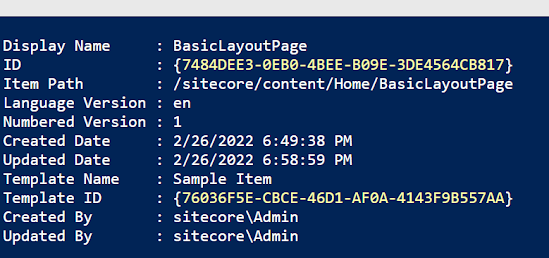
Console Output


Above script will provide details of items staring from particular date, which will contain latest numbered version, all created language version and item modified by  particular user.
Details displayed for items are as follows:
  • Display Name 
  • ID
  • Item Path 
  • Language Version 
  • Numbered Version
  • Created Date
  • Updated Date
  • Template Name 
  • Template ID
  • Created By
  • Updated By

Also you can modify above script as per your requirement  and reuse the script.
If you want to export the content in text file you can use below script to perform the task.


$itemPath = "master:/sitecore/content/home"
$fromDate = (get-date "08/01/2021") # mm/dd/yyyy format

[String[]] $data = Get-ChildItem -Path $itemPath -Recurse -Language * | 
Where-Object { $_.__Updated -gt $fromDate -and $_."__Updated By" -eq "sitecore\Admin" } |
Select-Object -Property @{Label="Display Name"; Expression={$_."DisplayName"} }, 
						@{Label="ID"; Expression={$_."Id"} }, 
						@{Label="Item Path"; Expression={$_."itemPath"} }, 						
						@{Label="Language Version"; Expression={$_."Language"} }, 												
						@{Label="Numbered Version"; Expression={$_."Version"} }, 																		
						@{Label="Created Date"; Expression={$_."Created"} }, 
						@{Label="Updated Date"; Expression={$_."__Updated"} },  
						@{Label="Template Name"; Expression={$_."TemplateName"} },  
						@{Label="Template ID"; Expression={$_."TemplateID"} },  						
						@{Label="Created By"; Expression={$_."__Created By"} }, 
						@{Label="Updated By"; Expression={$_."__Updated By"} }						
						
Out-Download -Name ItemDetailsReport.txt -InputObject $data


ItemDetailsReport.txt File


Also refer below articles if you want to create Sitecore PowerShell Reports inside PowerShell module in Sitecore CMS

Hope you find this information useful.😄


Wednesday, October 5, 2022

Sitecore - Indexing Specific item using PowerShell


We came across a challenge where we want to index particular item in Sitecore without running indexing job.  Whenever we run indexing job from Sitecore dashboard it will require large amount of time to complete indexing. Also it will index everything present in content tree. We do not have feasibility to index particular item. We discovered script which will help to perform this task.

Script

#Selecting Index
$index = [Sitecore.ContentSearch.ContentSearchManager]::GetIndex("sitecore_master_index")
#Selecting Item
$indexItem = Get-Item -Path "master:\content\home\TestItem"
#Indexing Item
[Sitecore.ContentSearch.Maintenance.IndexCustodian]::Refresh($index, [Sitecore.ContentSearch.SitecoreIndexableItem]$indexItem)


In above script we need to specify the index name and item name that we need to add. Above command needs to be executed in Sitecore PowerShell Console. After executing this Command item will get indexed. 

If you to index multiple items inside content tree you can use below script.

Script

#Selecting Items
$itemsToBeIndexed=Get-ChildItem -Path "master://sitecore/content/Documents/" -Recurse;

#Selecting Index
$index = [Sitecore.ContentSearch.ContentSearchManager]::GetIndex("sitecore_master_index")

foreach ($indexItem in $itemsToBeIndexed)
{	
	#Indexing Items
	[Sitecore.ContentSearch.Maintenance.IndexCustodian]::Refresh($index, [Sitecore.ContentSearch.SitecoreIndexableItem]$indexItem)
}


I hope you will find this information useful.


Sitecore PowerShell Script - Remove item from Workflow

We came across scenario where we need to remove multiple items from workflow. If items would be less then there would not be any issue but i...